
What is Coexistence (Coex)? (and why it’s useful)
Coexistence (Coex) lets you use the same WhatsApp Business number in two places at the same time:
- WhatsApp Business App on your phone (your normal app experience)
- WhatsApp Cloud API inside SLACE (automation, integrations, team inbox, workflows, reporting)
This gives you the convenience of the phone app plus the power of Cloud API—all without losing access to your number.
Official Meta guide:
https://developers.facebook.com/docs/whatsapp/embedded-signup/custom-flows/onboarding-business-app-users
Before you start
Coex must be enabled for you
Before onboarding, contact SLACE so we can activate Coexistence onboarding in your dashboard.
Without this activation, the Coex option will not appear.
✅ Practical learnings
1) Keep Coex active
Open your WhatsApp Business App at least once every 14 days.
If not, the Coex connection may expire and you may need to reconnect.
2) Avoid “one phone for everything”
- WhatsApp confirms you cannot use the same phone number in WhatsApp (Personal) and WhatsApp Business at the same time.
- Best practice:
- 1 phone = WhatsApp Business (work)
- 1 phone = WhatsApp Personal (private)
Especially on iPhone, because:
- iCloud keeps one backup per WhatsApp account
- Each new backup overwrites the previous one
3) Android quick note
Android can support both apps on one device, but during onboarding it’s common to accidentally scan the QR code with the wrong app (Personal WhatsApp instead of WhatsApp Business).
4) Profile updates must be done in the Business App
Your profile picture and business description must be changed by the customer directly in the WhatsApp Business App.
What you need before starting
- Access to your SLACE dashboard
- Access to your Meta Business Portfolio (admin mandatory)
- Access to the phone number (to receive SMS/call verification)
- The physical phone with the WhatsApp Business App installed (you will approve steps inside the app)
5) Business verification for Coex is done inside the WhatsApp Business App (Meta Verified) — not like the standard WhatsApp Business API flow
Full reference (WhatsApp FAQ): https://faq.whatsapp.com/3872729742954601/
With Coexistence, business verification does not follow the usual WhatsApp Business API / Business Manager verification process you may know.
Instead, verification is completed directly inside the WhatsApp Business App via Meta Verified.
Important: Meta Verified is subscription-based — please factor in the ongoing cost if you plan to get verified and unlock the related benefits.
✅ Key WhatsApp benefit: Once verified, your display name will be shown (along with additional Meta Verified benefits).
How to onboard Coex in SLACE
- Log into your SLACE dashboard
- Go to Profile (top right) → Settings → Channels
- Click the gray WhatsApp logo to start the onboarding flow
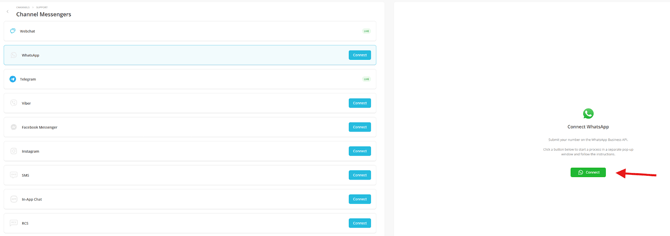
- Complete the Meta Embedded Signup steps
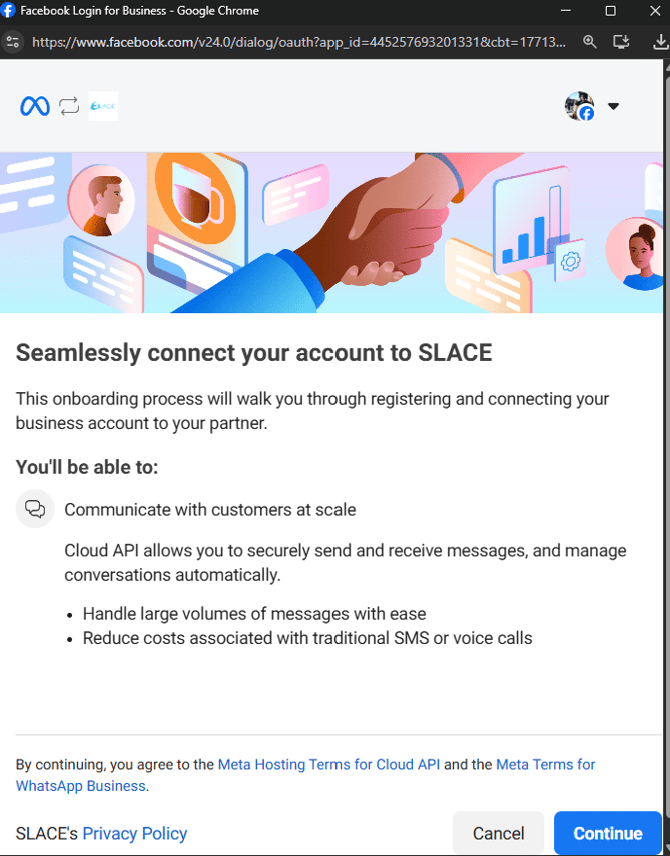
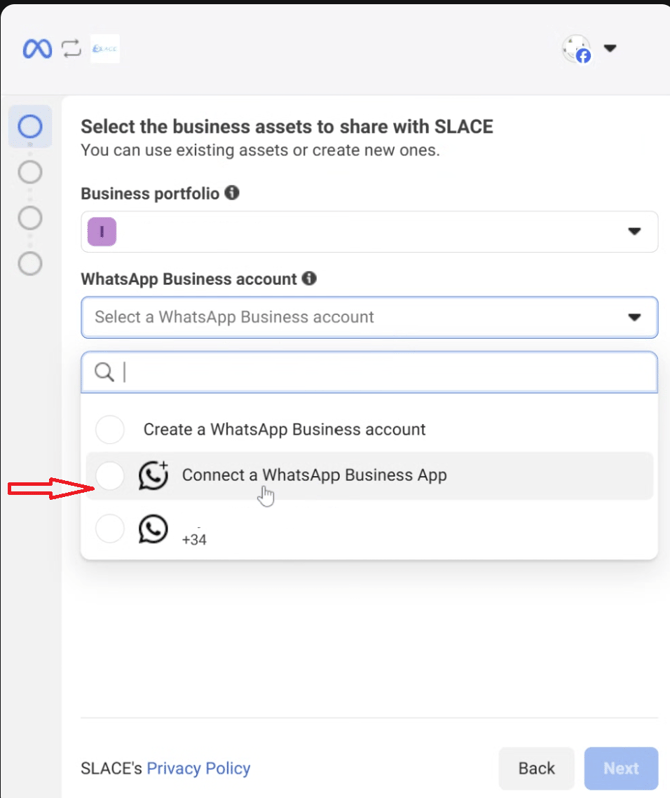
- Important: Choose “Onboard a WhatsApp Business App” (Coex option)
- A QR code will appear in your dashboard
- On your phone:
- Open the WhatsApp Business App
- Scan the QR code
- Approve all prompts in the app
- This grants SLACE/Cloud API permission to connect your number
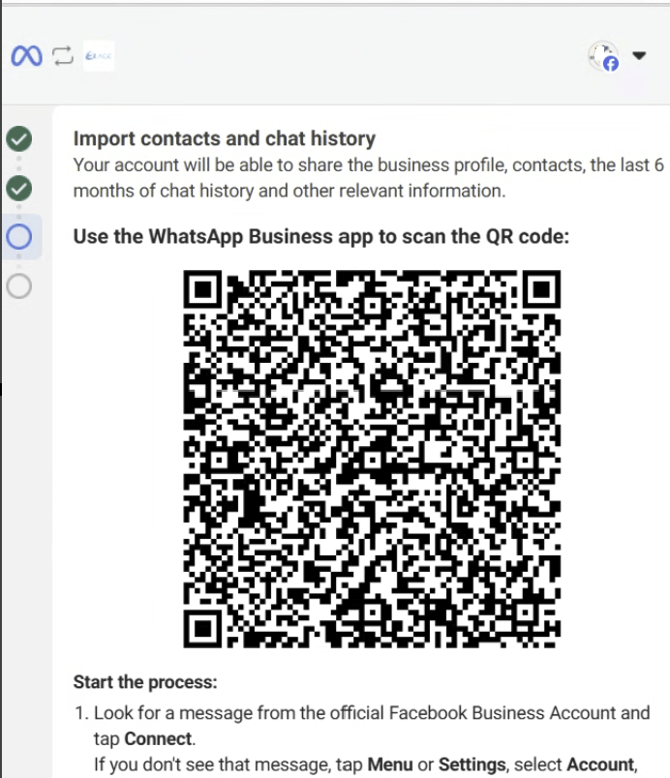
- This grants SLACE/Cloud API permission to connect your number
- Back in the SLACE dashboard, enter your number and receive the verification code
- Finish the final steps → connection complete ✅
Result
Your WhatsApp number is now active in the phone app and in SLACE (Cloud API) at the same time.
Need help?
If you need support or are unsure about any step, reach out and we can schedule a 20-minute onboarding call to assist you.